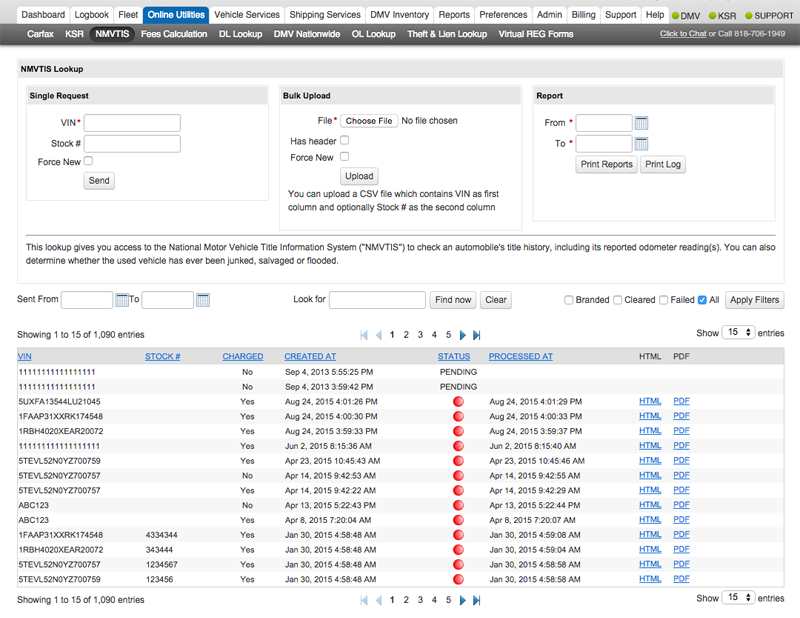
The NMVTIS lookup gives you access to the National Motor Vehicle Title Information System ("NMVTIS"). Here you can check an automobile's title history, including its reported odometer reading(s). You can also determine whether the used vehicle has ever been junked, salvaged, or flooded.
1. Navigate to Online Utilities > NMVTIS.
2. The NMVTIS page appears.
1. Navigate to Online Utilities > NMVTIS. In the upper left corner of the page, look for the Single Request section.
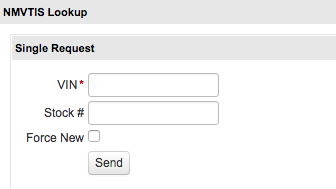
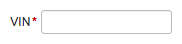
2. In the VIN text field, enter the entire VIN.
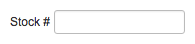
3. In the Stock # text field, enter the stock number.
4. Click the Force New checkbox to run the most current report.

5. Click the Send button.

6. Click on the HTML or PDF link as desired.

To run NMVTIS Reports on multiple, specific vehicles, upload a CSV file containing the VIN in the first column and, optionally, the Stock number in the second column.
1. Navigate to Online Utilities > NMVTIS. In the top center of the page, look for the Bulk Upload section.
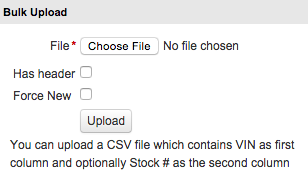
2. Click the Choose File button.

3. When the file selector appears, find and select the CSV file.
 TIP: For instructions on creating a CSV, look at the KSR Bulk Upload instructions. The instructions are the same except your spreadsheet will only have a VIN column and (optionally) a Stock Number column.
4. If the CSV file has a header row, click the Has header checkbox.

5. Click the Force New checkbox to ensure the latest information on the vehicle.

6. Click the Upload button.

The NMVTIS Reports for the VINs indicated in the CSV appear.
7. Click on the HTML or PDF link as desired.
To print all the reports for a specific date range, enter the range and print either the reports or a log.
1. Navigate to Online Utilities > NMVTIS. In the top right of the page, look for the Report section.
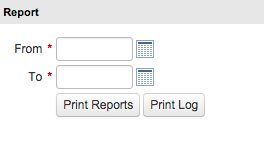
2. Enter the beginning date in the From text field or use the calendar pop-up.
3. Enter the end date in the To text field or use the calendar pop-up.
4. Click the Print Reports button to download the NMVTIS Reports within the date range.

AND/OR
Click the Print Log button to download an Excel XLS file summarizing NMVTIS activity within the date range.
