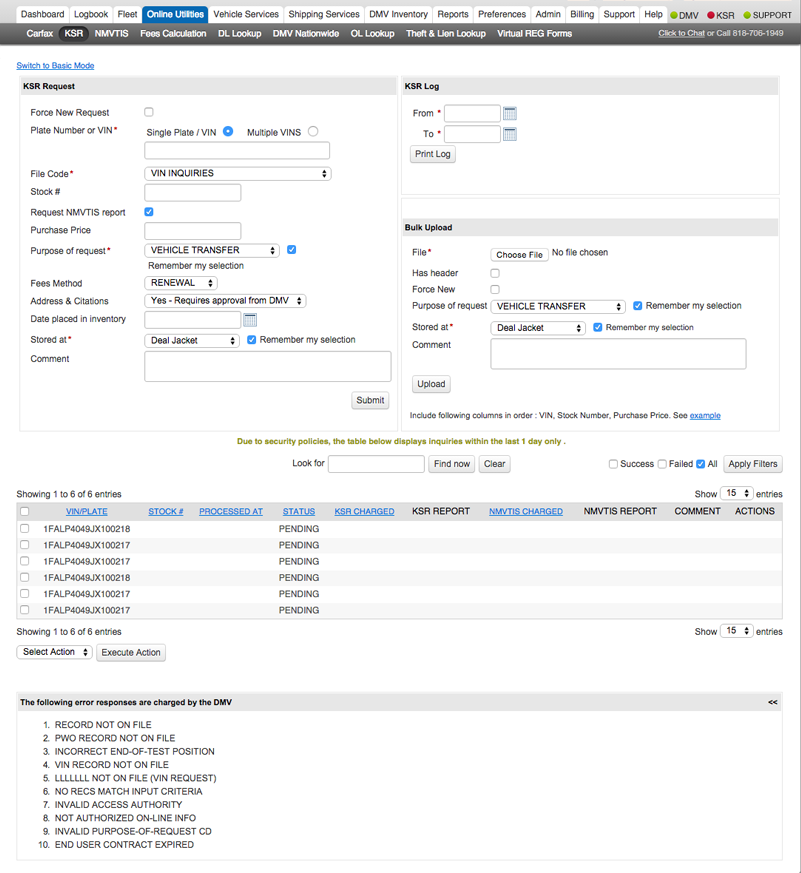
1. Navigate to Online Utilities > KSR.
The KSR page appears.
 Note: The KSR page defaults to Advanced Mode. Click the Switch to Basic Mode link in the upper left corner of the page to switch to the Basic Mode view.

To show the Basic Mode view by default, navigate to Preferences and near the bottom of the page in the KSR Preferences section, click the Show Basic view by default checkbox.
To run a single KSR request, follow the steps below.
1. Navigate to Online Utilities > KSR and look for the single KSR Request section in the upper left.
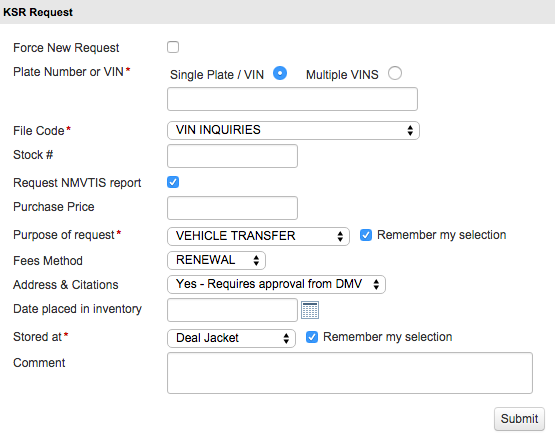
2. Click the Force New Request checkbox to ensure that the latest information on the vehicle is retrieved.

Note: DMVdesk stores the KSR information for approximately 60 days to avoid multiple charges when requesting information on the same vehicle within the dealership. This is especially helpful for DMVdesk clerks who are able to populate much of the eFile data for the vehicle from the pre-run KSR.
3. From the Plate Number or VIN radio group, choose Single Plate / VIN. In the Plate Number or VIN text field, enter the entire VIN or entire plate number for the vehicle.

Note:: KSR reports do not provide driver license information.
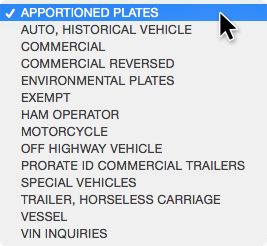
4. From the File Code dropdown menu, select the appropriate file code as needed. File code attempts to auto select based on data entered into the Plate Number or VIN text field.
|
|
Choose from: |
|
a) Apportioned Plates |
|
|
b) Auto, Historical Vehicle |
|
|
c) Commercial |
|
|
d) Commercial Reversed |
|
|
e) Environmental Plates |
|
|
f) Exempt |
|
|
g) HAM Operator |
|
|
h) Motorcycle |
|
|
i) Off Highway Vehicle |
|
|
j) Prorate ID Commercial Trailers |
|
|
k) Special Vehicles |
|
|
l) Trailer, Horseless Carriage |
|
|
m) Vessel |
|
|
n) VIN Inquiries |
5. In the Stock # text field, enter the stock or control number of the vehicle in inventory. Or if taking a vehicle in on trade, enter the stock or control number of the vehicle being purchased.

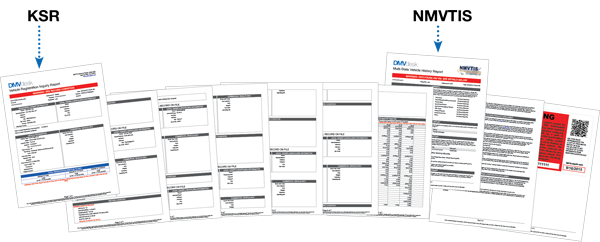
6. Click the Request NMVTIS report checkbox to run an NMVTIS report at the same time as the KSR using the vehicle information provided.

Both reports download in a single PDF file.
7. In the Purchase Price text field, enter the purchase price of the vehicle.

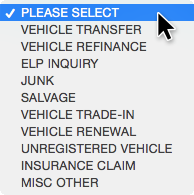
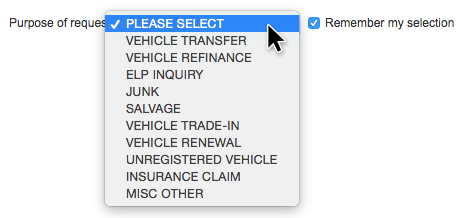
8. Select the Purpose of Request for logging purposes only.
|
|
Choose from: |
|
a) Vehicle Transfer |
|
|
b) Vehicle Refinance |
|
|
c) ELP Inquiry |
|
|
d) Junk |
|
|
e) Salvage |
|
|
f) Vehicle Trade-In |
|
|
g) Vehicle Renewal |
|
|
h) Unregistered Vehicle |
|
|
i) Insurance Claim |
|
|
j) MISC Other |
• Click the Remember my selection checkbox to keep this setting for future requests.

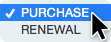
9. From the Fees Method dropdown menu, choose either Purchase or Renewal.
10. Next to the Address & Citations dropdown menu, choose Yes – Requires approval from DMV or No as desired.

Note: If the DMV has not approved the dealership for address information or if the dealership business manager has not approved the user for this information, then the information will not be displayed.
11. In the Date placed in inventory text field, enter the date or select it from the calendar pop-up.

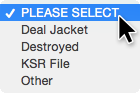
12. Select the Stored at location for logging purposes only.
|
|
Choose from: |
|
a) Deal Jacket |
|
|
b) Destroyed |
|
|
c) KSR File |
|
|
d) Other |
• Click the Remember my selection checkbox to keep this setting for future requests.
13. Click the Submit button.

14. Click on the HTML or PDF link as desired.

Note: For best printing results, choose PDF and use Adobe Reader. Additionally, PDF files are easy to archive. The HTML format is provided for convenience.
The KSR page features a transaction log mirroring the NMVTIS page.
1. Navigate to Online Utilities > KSR and look in the upper right corner for the KSR Log area.
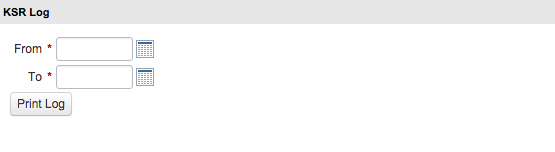
2. In the From and To text fields/date chooser, enter or select the dates in their respective fields.
3. Click the Print Log button.

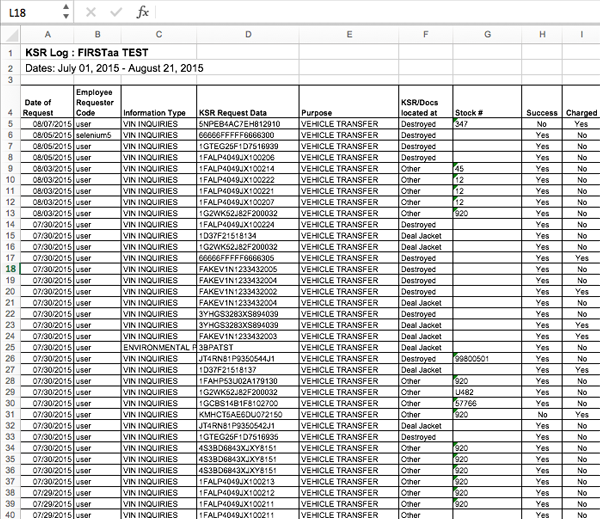
4. An XLS spreadsheet downloads to your computer. Open it in Excel to view or print out the log.
The bottom of the KSR page features a log allowing for easy access to several features.

Use the filters available on the right side of the page.

Click the checkboxes for Success, Failed, or All. Click the Apply Filters button.
Use the Look For field to search for any specific criteria.

Type any criteria into the Look for text field. Click the Find now button to search for the criteria. Click the Clear button to clear any current filtered results and reset the view.
• Click the Edit link to edit any information regarding the transaction.
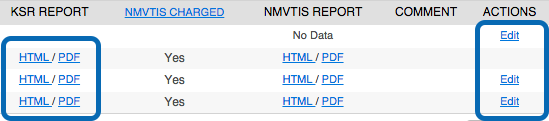
• Click the HTML, or PDF links to view, download, or print those reports.
• Additionally, select one or more checkboxes next to a transaction and use the Select Action dropdown menu below the log. Choose from Print PDF or Print HTML.
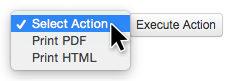
Click the Execute Action button.
Note: This is a great way to grab multiple PDF or HTML reports for several transactions in one easy step.
1. Navigate to Online Utilities > KSR and look for the Bulk Upload section in the center of the page.
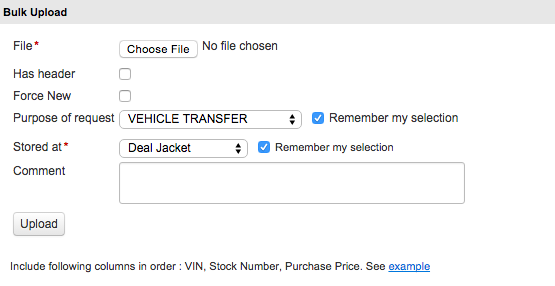
Note: If you don’t see the Bulk Upload section, click the Switch to Advanced Mode link in the upper left corner.
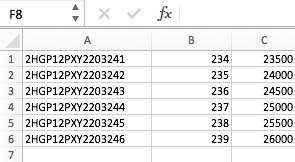
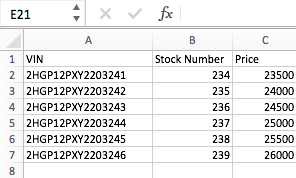
2. If you have multiple KSRs to run at once, use Excel to create a simple spreadsheet containing the following columns:
|
VIN, Stock Number, and Purchase Price
|
|
|
|
|
|
Data entered without a header row. |
Data entered with a header row. |
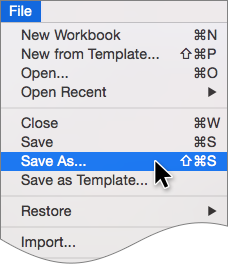
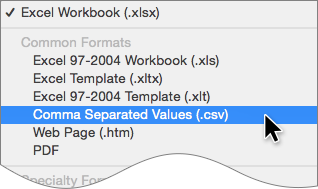
3. In Excel, save the file as a .CSV. From the File menu, choose Save As…
4. In the dialog box, enter a filename and from the Format dropdown menu, select Comma Separated Values (.csv).
5. To save the CSV, click the Save button.

6. Back in DMVdesk and the KSR Bulk Upload area, click the Choose File button and open the .CSV file you just saved.

7. If the CSV has a header, click the Has header checkbox. If the CSV only contains the necessary data, leave this unchecked.

8. Click the Force New checkbox to get the latest information from the DMV.

9. From the Purpose of Request dropdown menu, click the appropriate option. To keep this setting, click the Remember my selection checkbox.
10. Click the Upload button.

11. Once processed, the KSR reports appear at the bottom of the window. Click the HTML or PDF links to view the reports.